


DAWNBLOOM ARCHIVE · FOR DESKTOP
Your files stay on your computer.
Browse, compress, extract, and archive locally. Everyday formats, all in one place.

01 / BROWSE
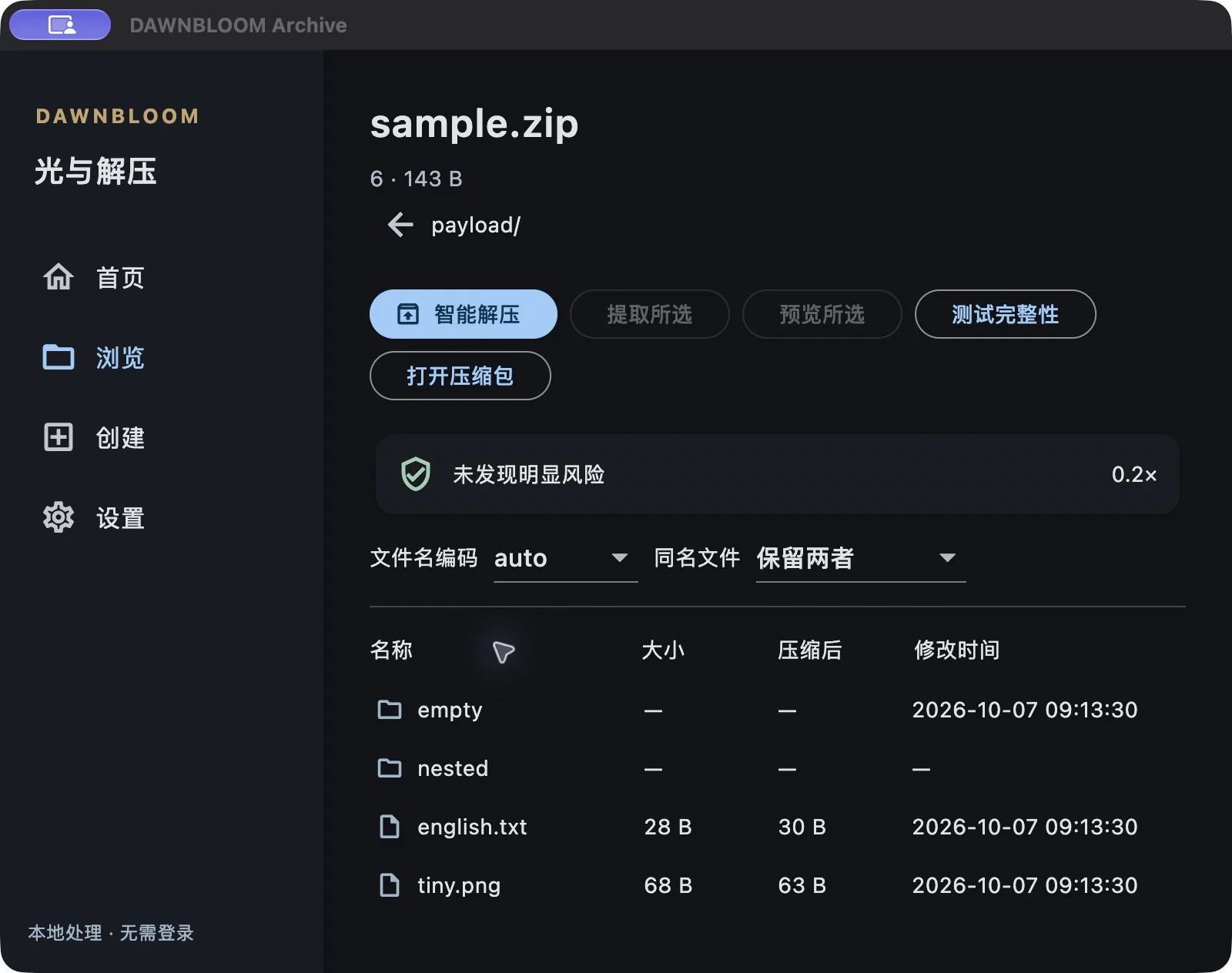
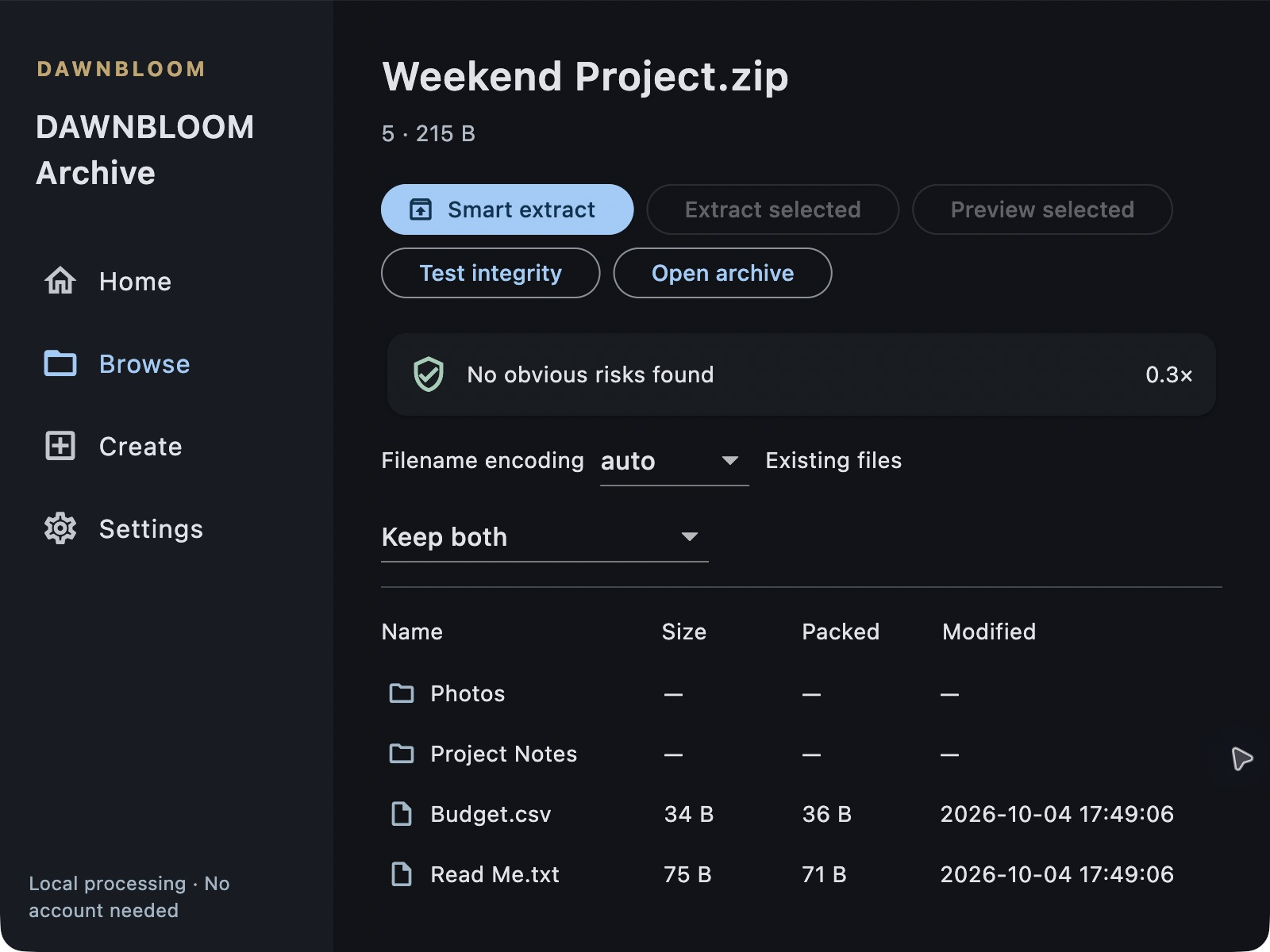
Open an archive. Browse before you extract.
Explore folders and files inside ZIP, 7z, RAR, and other archives like an ordinary folder. Take out only what you need.
02 / SMART
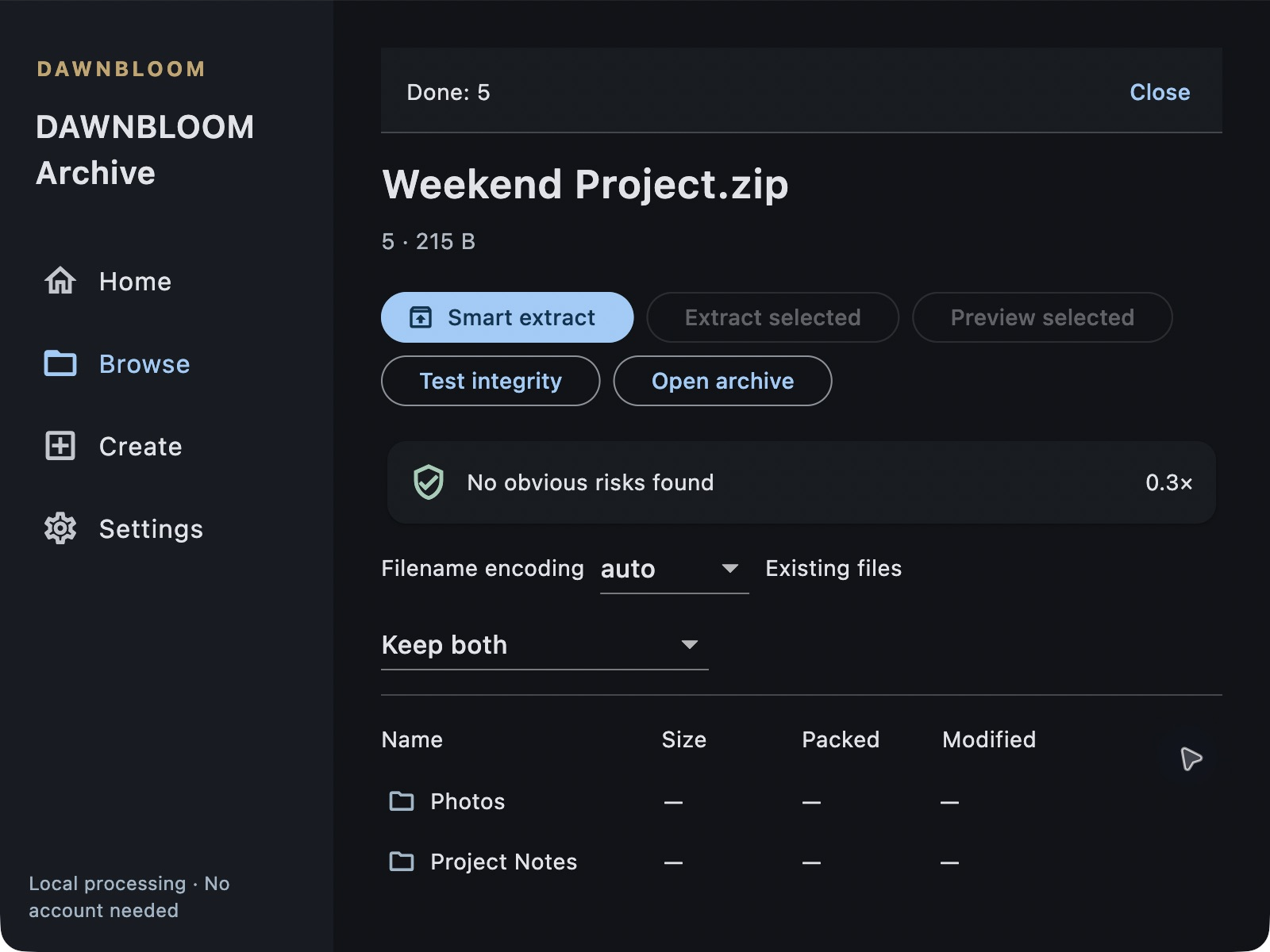
Let extracted files land in the right place.
Files stay in the archive’s folder by default, or you can choose another destination. One top-level folder needs no extra wrapper. Loose files get a folder named after the archive. For duplicate names, choose replace, skip, or keep both.
03 / ENCODING
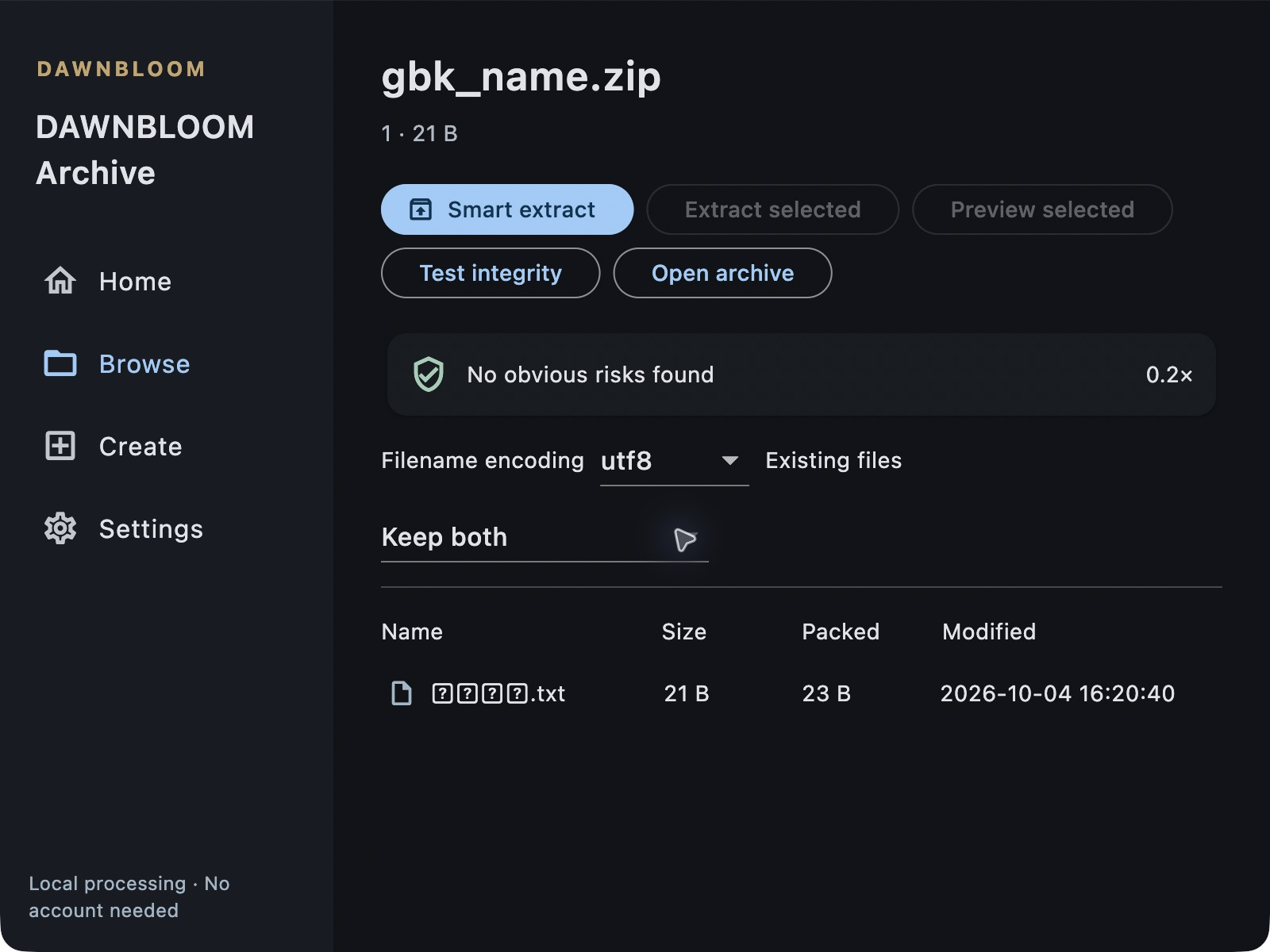
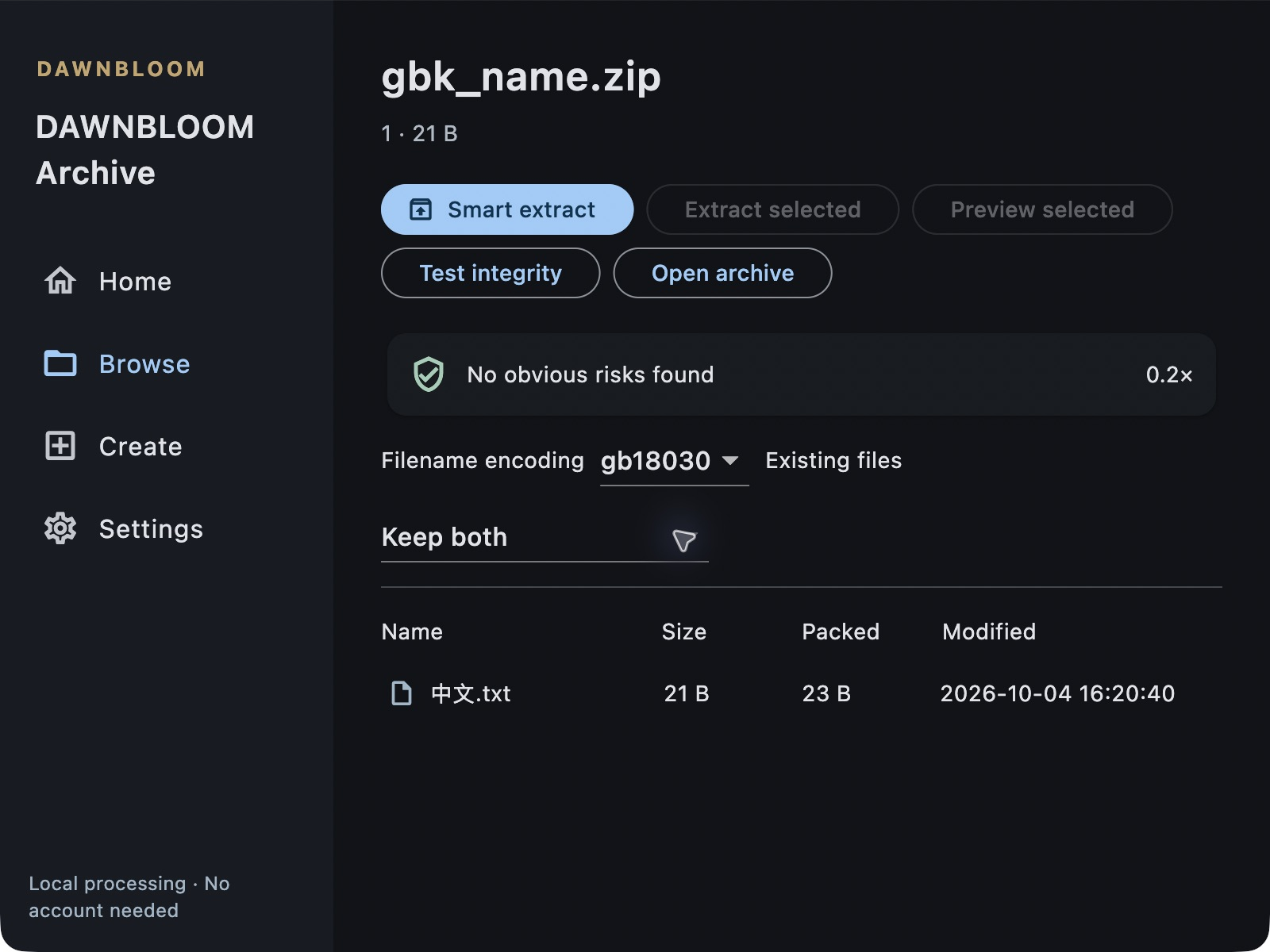
Give garbled filenames another chance.
Detect common filename encodings automatically, or choose UTF-8, GB18030, Big5, or Shift-JIS yourself.
04 / SAFETY
Know what is wrong before extraction.
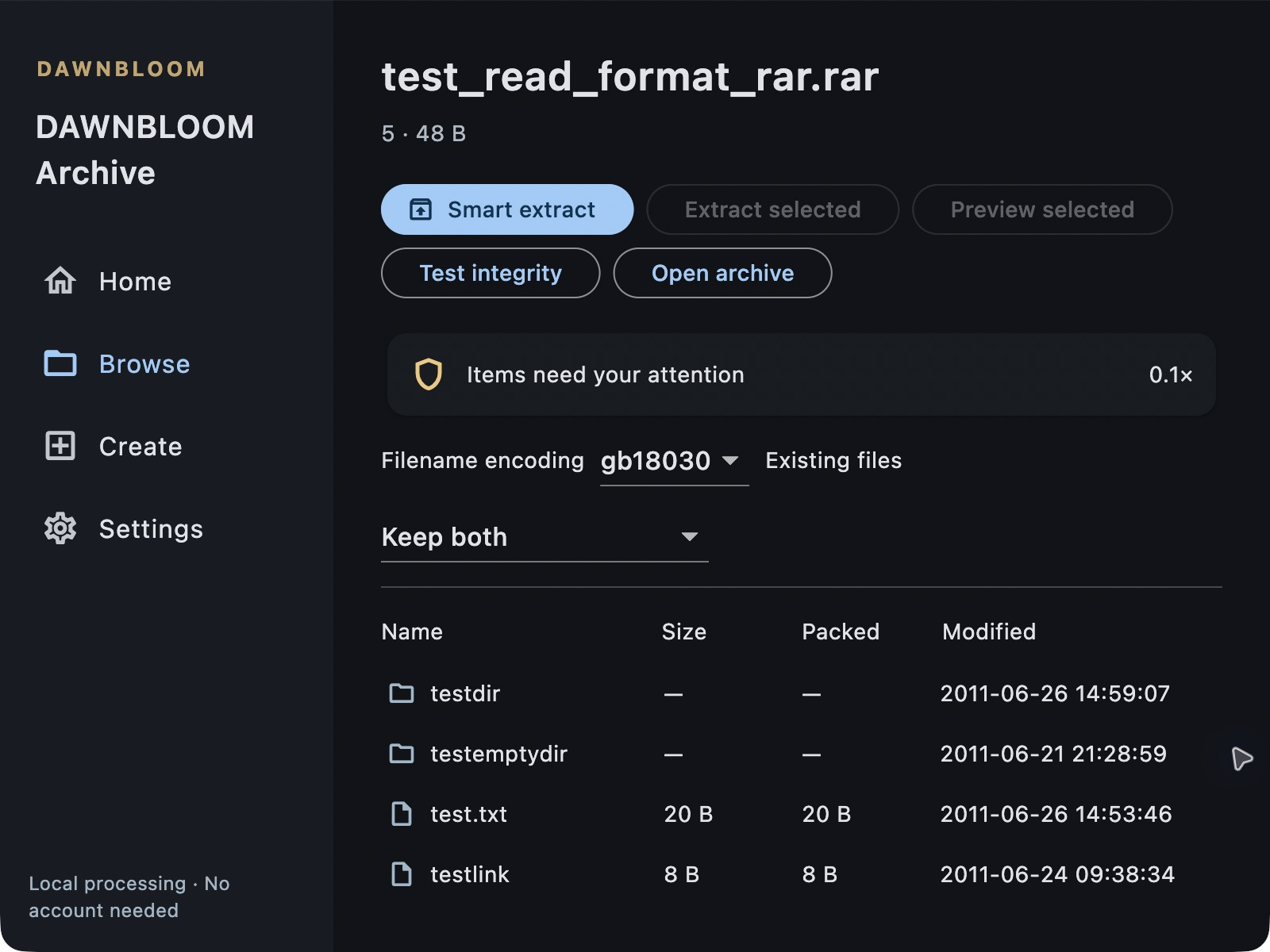
Check for damage, missing volumes, unusual expansion, and unsafe paths before writing to your destination. An integrity test helps confirm the archive can be read.
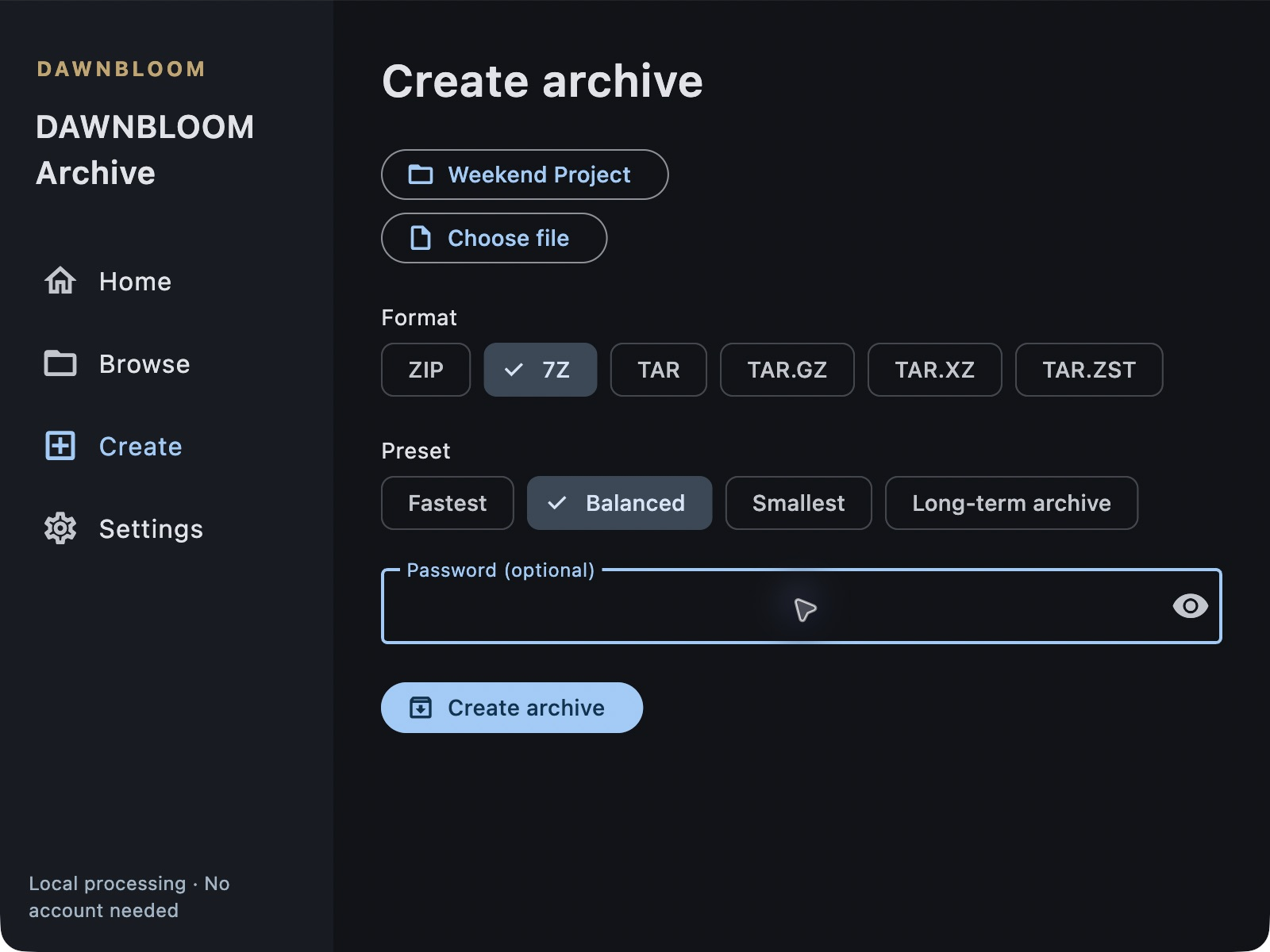
05 / CREATE
Compress files without studying every setting.
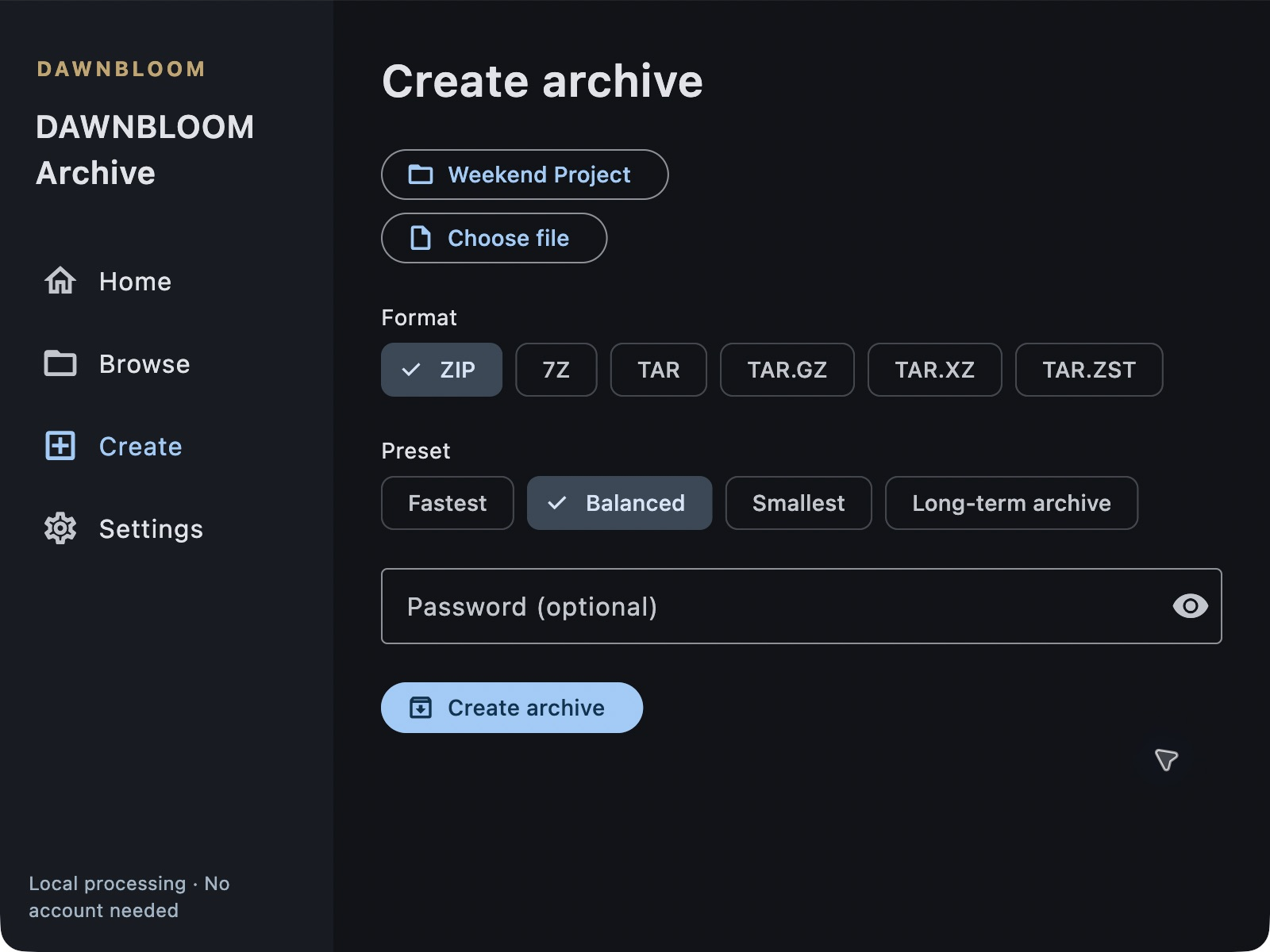
Pick Fastest, Balanced, Smallest, or Long-term archive. Choose a folder and get started; advanced settings can wait.
06 / ENCRYPTION
Your password stays on your computer.
Protect ZIP or 7z archives with a password. It is entered and used locally, never uploaded or synced to an account. AES-256 ZIP creation is available.
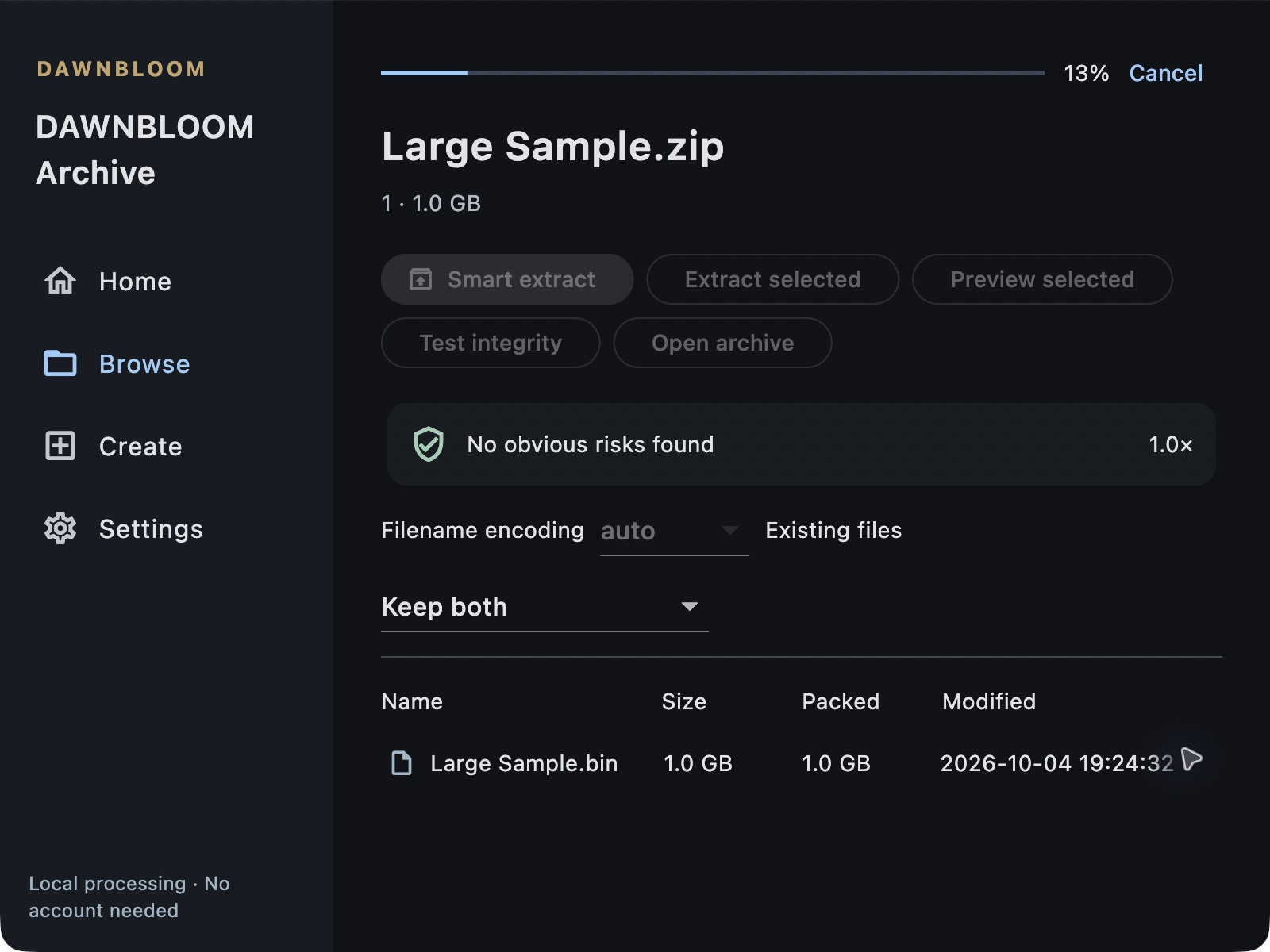
07 / LARGE
Large files need no trip to the cloud.
From small files to multi-gigabyte archives, work happens on your Mac. A real Apple Silicon Mac has browsed, tested, and extracted a 10 GiB ZIP.
LOCAL FIRST
Your files belong on your computer.
Compression, extraction, browsing, preview, and integrity checks run locally. DAWNBLOOM servers do not upload, extract, store, or read your archive contents. An optional account syncs language, default archive format, and presets, never files, filenames, paths, passwords, or local history.
Read the product privacy notice ↗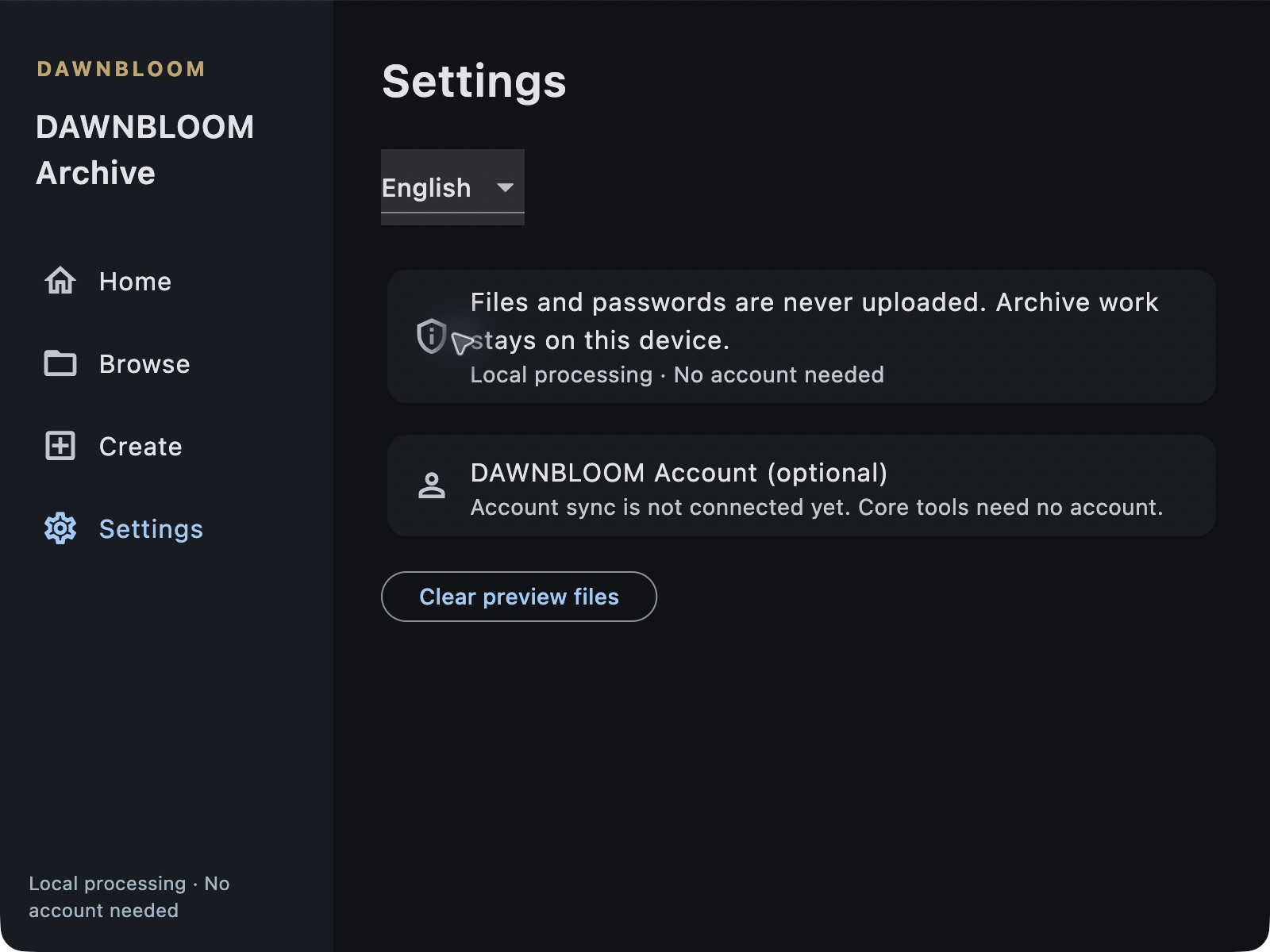
FORMATS
Supported formats
Open & extract
- ZIP / ZIPX
- 7z
- RAR / RAR5
- TAR
- TAR.GZ / TGZ
- TAR.XZ
- TAR.ZST
- GZ
- BZ2
- XZ
- ZST
- CAB
- CPIO
- AR
- JAR
- APK
Create & compress
- ZIP
- 7z
- TAR
- TAR.GZ
- TAR.XZ
- TAR.ZST
These formats have been checked on Mac and Windows. ZIPX supports verified ZIP compression methods; AR supports ASCII / UTF-8 member names. RAR can be extracted, not created.
LANGUAGES
Work in a language you know.
The app interface supports eight languages. This product page is available in 20 languages.
- 简体中文
- 繁體中文
- English
- 日本語
- 한국어
- Français
- ไทย
- Deutsch
Frequently asked questions
Can I double-click split 7z files on Mac?
Yes. With the latest macOS package, place the app in Applications and launch it once. Finder can then recognize .7z.001, .7z.002, and other numbered volumes. Keep all volumes together; opening a later volume locates the first automatically.
Where do files go if I do not choose a destination?
Extraction defaults to the archive’s folder, with no picker required each time. Smart extraction organizes the result; you can also choose another destination.
Can I download it now?
Official Windows and macOS 1.1.0 downloads are available. Read the platform signing notices and Terms of Service.
When is the Mac version coming?
macOS 1.1.0 is available for Apple Silicon Mac. It is not Developer ID signed or notarized; macOS may warn that the developer cannot be verified.
When is the Windows version coming?
Windows 1.1.0 has an x64 installer, tested with x64 emulation on Windows 11 ARM. It is unsigned and may trigger unknown publisher or SmartScreen notices.
Will DAWNBLOOM Archive be free?
DAWNBLOOM Archive 1.1.0 is free and ad-free.
Do I need an account?
No. Core tools work without login. Optional DAWNBLOOM Account sync transfers only language, archive format, and compression preset when you enable it.
Are my files uploaded?
No. The current app has no upload path for archive contents. DAWNBLOOM servers do not read files or filename lists.
Which formats can it open?
Both platforms have been checked with ZIP, ZIPX using supported ZIP methods, 7Z, RAR4 / RAR5, TAR, TAR.GZ / TGZ, TAR.XZ, TAR.ZST, GZ, BZ2, XZ, ZST, CAB, CPIO, AR with ASCII / UTF-8 names, JAR, and APK. Opening a format does not imply creation support.
Which formats can it create?
It can create ZIP, 7z, TAR, TAR.GZ, TAR.XZ, and TAR.ZST.
Can it extract RAR?
Yes. RAR4 and RAR5 single archives, split volumes, and Unicode filenames have been checked on both platforms. Keep all volumes in one folder and open any volume; the app locates the first one automatically.
Can it create RAR?
No. RAR creation is not available.
Can I extract just one file?
Yes. Select a file in the archive browser without extracting everything first.
Can I preview without extracting everything?
Yes. The selected file is temporarily extracted locally and opened by a suitable system app.
What is Smart Extract?
It chooses a sensible destination layout, avoiding redundant folders and grouping loose files.
What happens with duplicate filenames?
Choose Skip, Replace, Keep both, or replace only when the incoming file is newer.
What if filenames are garbled?
The app detects common encodings. You can choose UTF-8, GB18030, Big5, or Shift-JIS manually. Automatic GBK ZIP repair has been checked on Mac.
How do I check for corruption?
Open the archive and choose Test integrity. The app checks readable structure and checksums.
Will it warn me about missing volumes?
RAR4 / RAR5, legacy RAR, 7z, and ZIP split archives are supported. Missing first, middle, or final volumes are reported. Keep every volume in one folder.
Does it warn about unusually large extraction?
The app warns about unusual estimated size or file count. This does not replace antivirus software.
Does it block unsafe extraction paths?
It checks unsafe paths and links and blocks them from writing outside the chosen destination.
Can it create encrypted archives?
Yes. ZIP and 7z can be password protected; the current engine can create AES-256 ZIP.
Are passwords saved or synced?
Passwords are not saved or synced. They are used locally for the selected operation.
Can it handle large archives?
A real Apple Silicon Mac has browsed, checked, and extracted a 10 GiB ZIP. Larger work needs enough local disk space.
Why is temporary disk space needed?
The app uses a local temporary area for processing and checks before placing files at the destination. Large files may need extra space.
How do I clear preview files?
Choose Clear preview files in Settings. Previews from the current session are also cleared on exit.
Which interface languages are supported?
Simplified Chinese, Traditional Chinese, English, Japanese, Korean, French, Thai, and German: eight app interface languages. The website product page is available in 20 languages.
Are Finder Quick Actions available?
For now, open and create archives in the app. Finder integration is in preparation.
Are Explorer context actions available?
After installation, choose DAWNBLOOM Archive in Explorer’s Open with menu. Existing default apps are preserved. Dedicated context-menu compression actions are not available.